
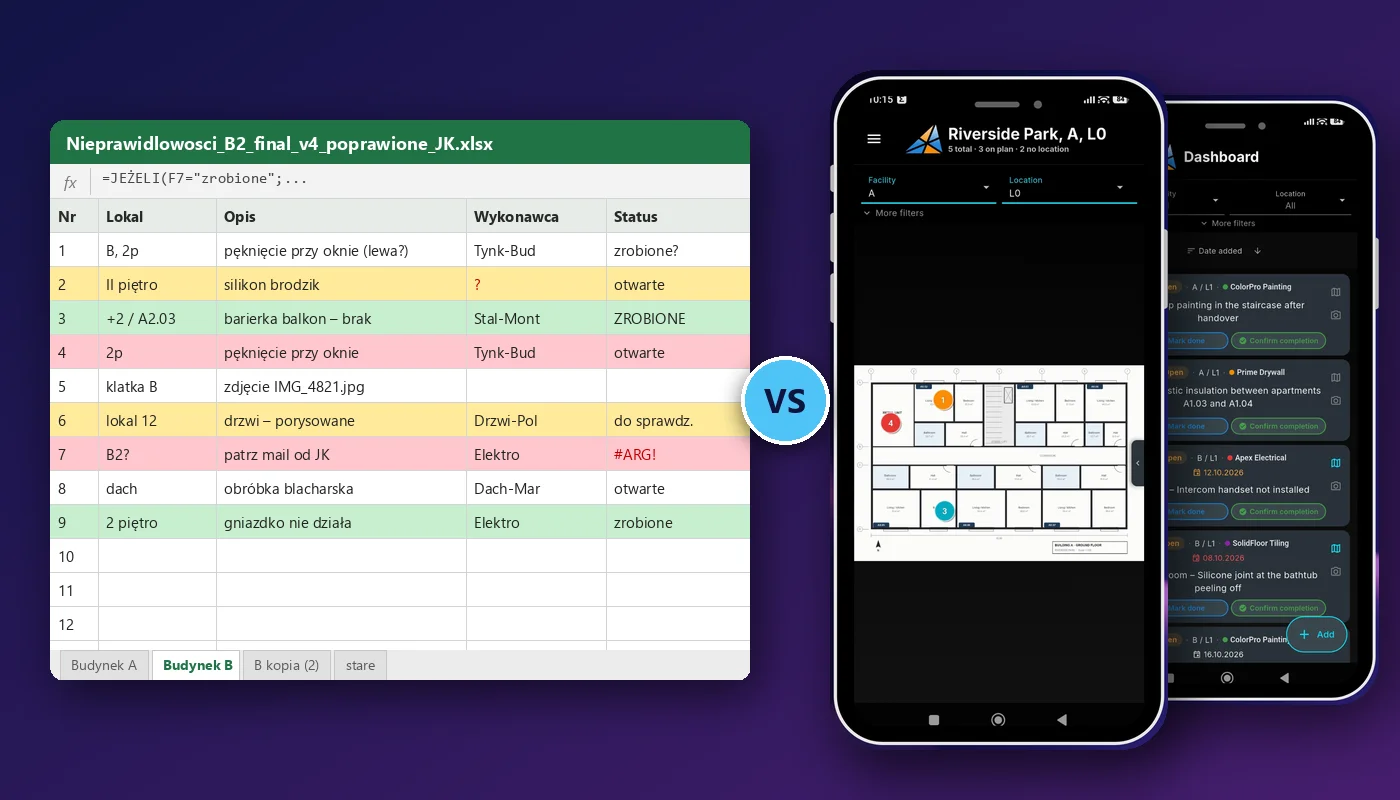
A defect list managed in Excel works as long as one person manages it on one property with a handful of items. As soon as a second property arrives, the list grows to dozens of items, or several subcontractors are working on corrections, the spreadsheet transforms from the fastest tool into a source of misunderstandings, lost photos, and meetings spent figuring out "which version is current".
This text is not another "ditch Excel". Excel is great and you don't have to abandon it entirely. We show why a defect reporting app has an advantage much earlier than usually assumed, and how to switch to it without losing what your team is used to, including exporting the list to XLSX files.
Table of Contents
- Why Excel is the first choice for a defect list
- What breaks at the second property and larger scale
- Excel vs defect reporting app – comparison
- You don't have to give up Excel: XLSX export
- When Excel is still enough
- How to switch from Excel to an app without revolution
- Who benefits the most
- FAQ – frequently asked questions about defect lists in Excel
Why Excel is the first choice for a defect list
Not without reason does almost every construction site start with a spreadsheet. Excel has real advantages:
- Everyone knows it. The manager, inspector, subcontractor, and investor will open the file without training.
- Zero implementation. Columns "No.", "Unit", "Description", "Contractor", "Status" and the list is ready in five minutes.
- Flexibility. Filters, sorting, conditional formatting, pivot tables.
- Easy to send. The file goes by email to everyone who needs it.
With one apartment, a dozen items, and one person managing the list, that's enough. The problem is that these same advantages very quickly become disadvantages, and you don't need a big investment for that.
What breaks at the second property and larger scale
The advantage of an app becomes visible when at least one of three conditions is met: you have more than one property, the list has dozens of items, or you work with multiple subcontractors. Each one individually multiplies the number of people, files, and questions. Already at two properties, two spreadsheets or two tabs appear, two sets of contractors, two inspection schedules, and clearly more people reporting defects. Then problems emerge that were invisible with one small property.
1. Location is a verbal description, not a place
In a spreadsheet, location is text: "B, 2nd floor, by the window facing the courtyard". The person who entered it knows which window is meant, but a contractor who is on that floor for the first time doesn't. With two properties with similar layouts, the same description can mean two different places, and the crew wastes time looking or fixes the wrong thing. Plus, everyone describes location differently ("2fl", "II floor", "+2"), so filtering by floor stops working.
How the app solves this: the defect is marked with a pin directly on the floor or unit plan. You upload the plan as a regular PDF, and the structure "project → property → floor" is common to everyone, so there are no two names for the same floor. Each contractor has their own color pin.
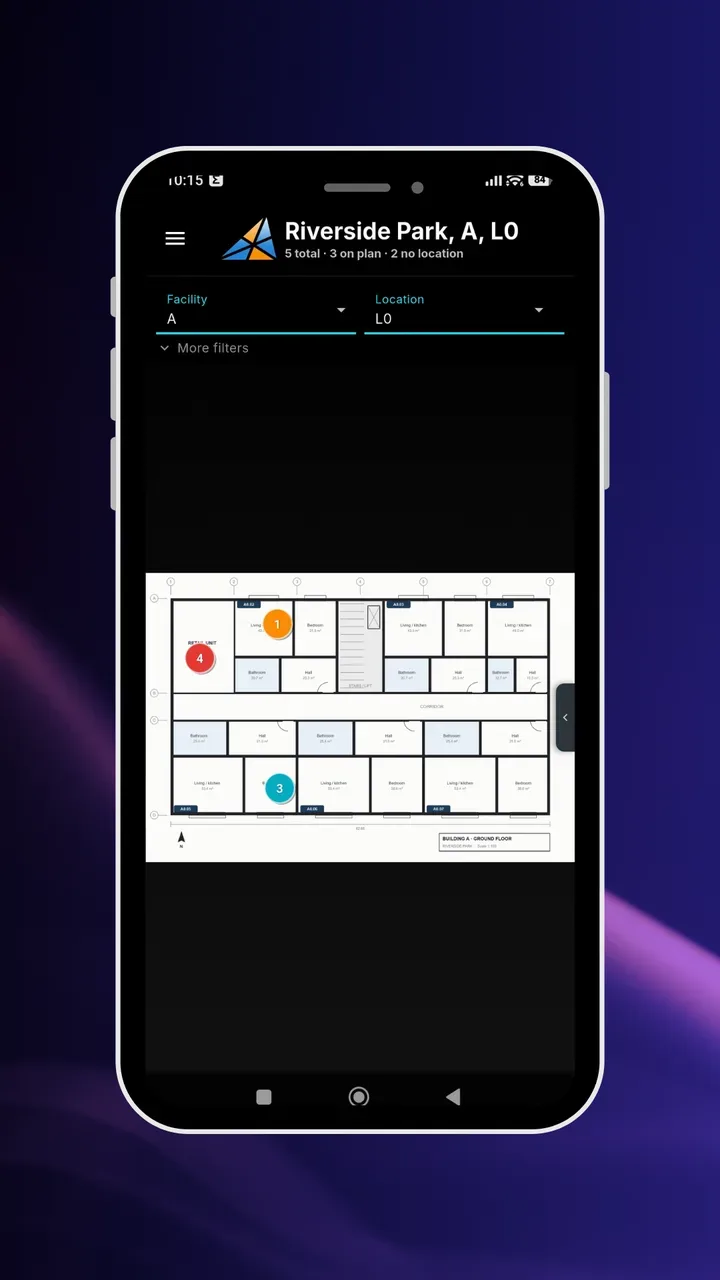
Instead of "by the window, 2nd floor" – a pin in a specific room on the plan. The header immediately shows how many defects are on the plan and how many are waiting for location assignment.
2. Photos live separately from the list
A photo of the defect is often more important than its description. In Excel, you have three options and each is bad: paste photos into cells (the file swells to tens of MB and stops opening on a phone), keep them in a separate folder with names like "IMG_4821.jpg", or send them in a separate email. Already with dozens of items, matching photos to rows takes an evening, and some get lost anyway, regardless of whether it's one big property or two smaller ones.
How the app solves this: the photo is part of the defect. You take it with your phone from the same form where you type the description, select the contractor, and set the deadline. The description can be dictated by voice.
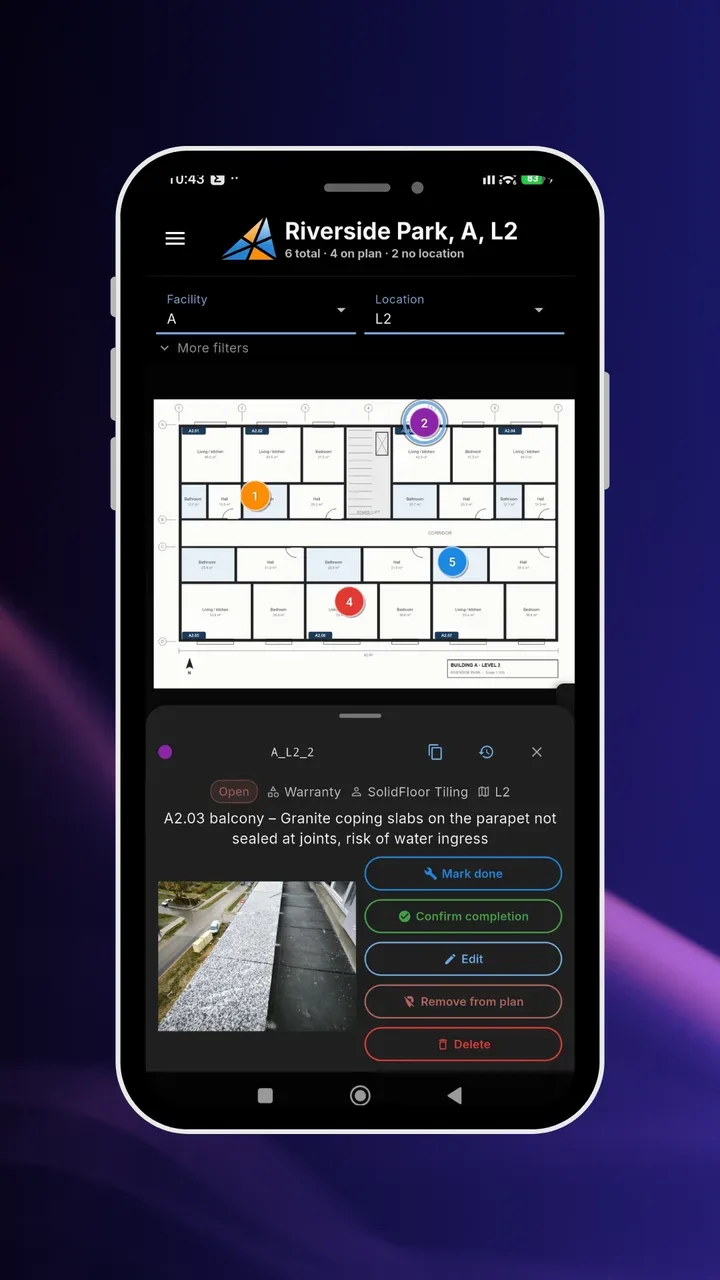
One defect, one record: location, contractor, deadline, description, place on the plan, and photo. Nothing needs to be matched in the evening.
3. Several file versions and nobody knows which one is current
"Defects_B2_final_v4_corrected_JK.xlsx". You know it. The inspector added new items in their copy, the subcontractor checked off repairs in theirs, the manager merged it manually on Friday. Two properties are enough, each with its own file and its own contractors, and the number of copies grows faster than the number of defects. The same happens on one property when several people add to the list. A shared cloud file helps only partially: on a construction site with a phone, editing a large spreadsheet is tedious, and one accidentally sorted range can mix descriptions with contractors.
How the app solves this: there is one defect list for all properties. Everyone sees changes right away, and filters (property, location, contractor, type, status) let you see only what concerns you. A subcontractor can get their own account where they see only their items.
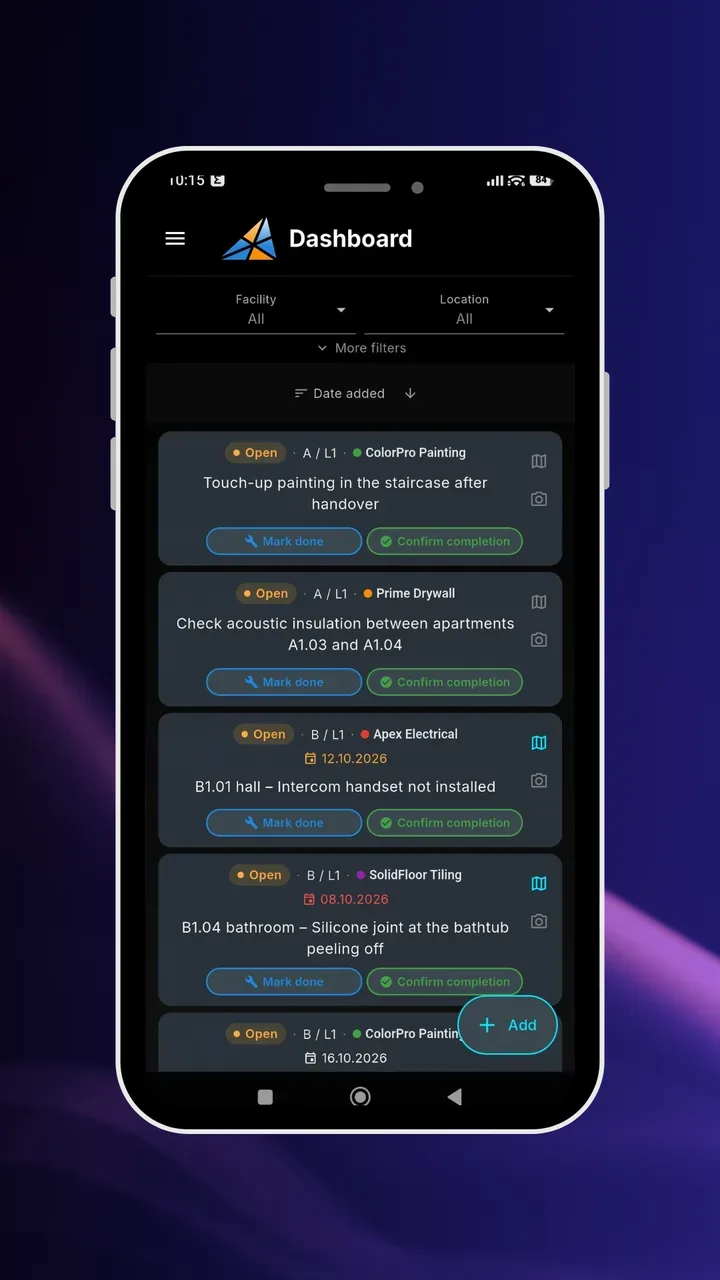
Defects from buildings A and B on one list, with contractor, deadline, and status. The "Property" filter replaces a separate file for each building.
4. "Done" status without verification and without history
In a spreadsheet, status is a cell that anyone can change. A contractor types "done", someone changes the row color to green, and the topic disappears. At inspection it turns out the repair was incomplete, and nobody remembers who and when closed the item. The more subcontractors, the more such cases, and Excel change history practically doesn't exist.
How the app solves this: it separates "completed" from "verified". The contractor clicks "Completed", and the manager or inspector confirms or sends the defect "For correction". Every status change, reassignment, and edit is recorded in history with the author and date, and role permissions determine who can close items.
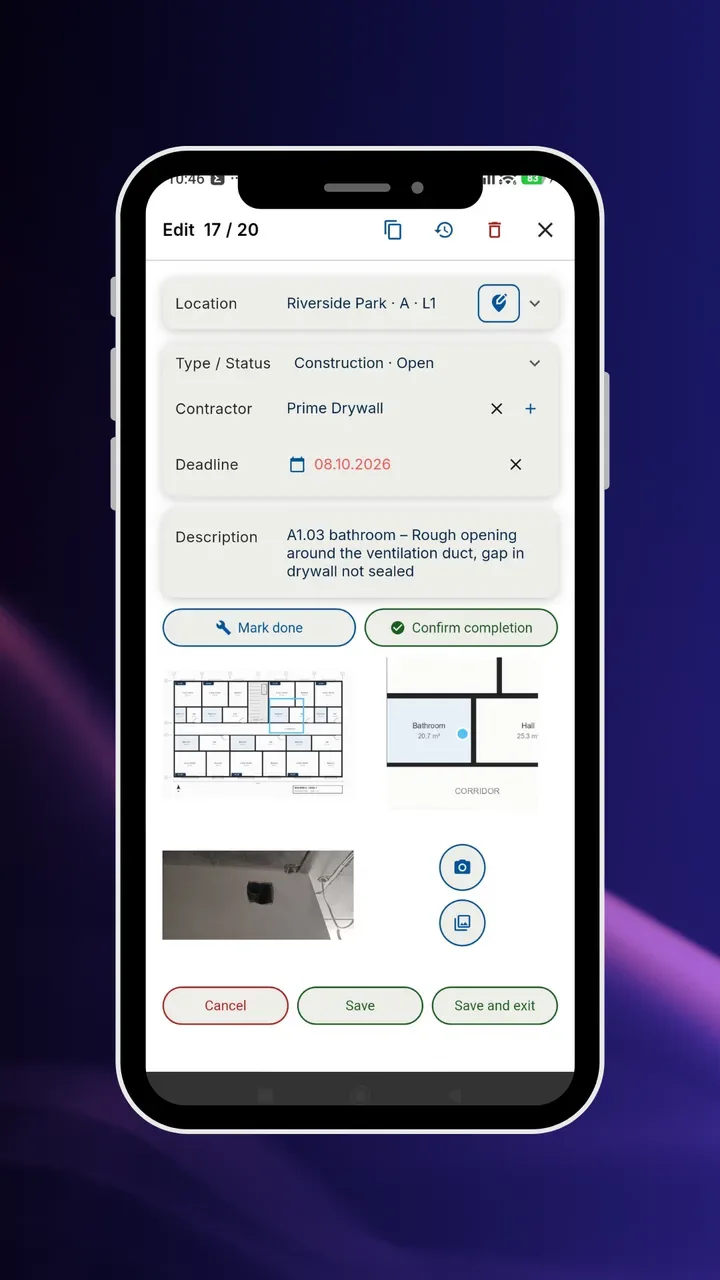
Defect details after clicking the pin: status, type, contractor, photo, and status change buttons. Change history is under the clock icon.
5. Reports for subcontractors take a day
Before a coordination meeting, you need to send each contractor their list. In Excel, this means: filter, copy, new file, paste, attach photos, describe locations, and repeat for each contractor. With ten subcontractors that's ten reports on one property, and with two properties already twenty.
How the app solves this: a PDF report with the plan, numbered pins, defect table, and photos is created in seconds, also as a separate file for each contractor. You set the report layout (title page, table columns, fields by photos) once and save it as a preset.
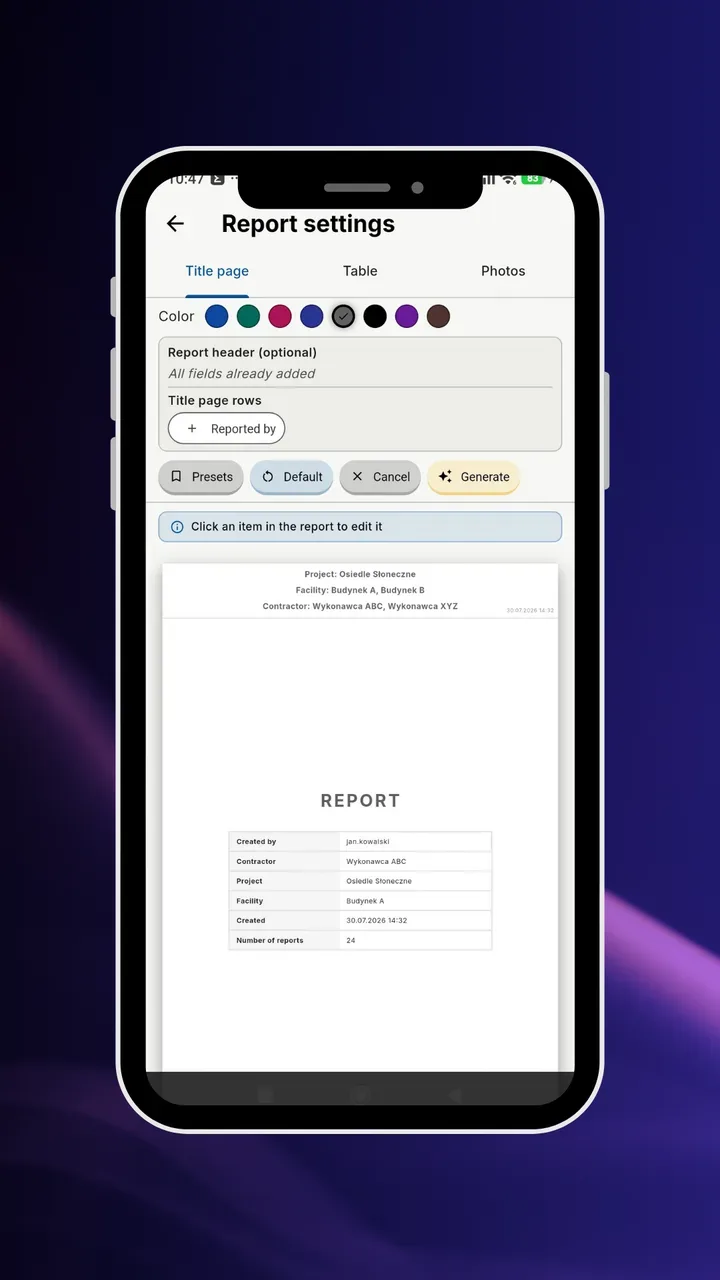
PDF report settings with live preview. The same filter set can generate a separate file for each contractor.
Excel vs defect reporting app – comparison
| Defect List in Excel | App (e.g. FixControl) | |
|---|---|---|
| Start | Instantly, no implementation | Upload PDF plans and add contractors |
| Defect location | Verbal description, different for each person | Pin on the plan, shared structure of properties |
| Photos | Separate folder or pasted in cells | Part of the defect, taken right away with phone |
| More than one property | Separate files or tabs | One list with property filter |
| Dozens of items | Long spreadsheet, hard to edit from phone | Filters, sorting, and plan instead of scrolling |
| Multiple people working | File copies, manual merging | Shared data, changes visible immediately |
| Subcontractor access | Whole file or manually cut fragment | Account with access only to own items |
| Statuses | Cell for manual editing | Completed → verified, with change history |
| Reports | Manual filtering and copying | PDF with plan and photos, and XLSX in seconds |
| Analytics and pivot tables | Full freedom | Export to XLSX and continue in Excel |
The last row is important: the app doesn't have to replace Excel in every role. It replaces it as the place where defects are collected and managed. Analysis, reports for management, and pivot tables you can continue to do in a spreadsheet.
You don't have to give up Excel: XLSX export
The most common concern when switching tools is: "half the team will want a spreadsheet anyway". That's why in FixControl you can export any defect list to Excel in seconds, in the format your team is used to.
- XLSX export. Any filtered defect list (property, location, contractor, type, status) is saved as an Excel file. You set columns and their names once in export configuration, so the file looks the way your team or investor is used to.
- Same numbers as in the app. Each row has the item number from the app, so "item A_L2_2" means the same thing in the spreadsheet, PDF report, and on the plan.
- Further work in the spreadsheet. The exported file is regular XLSX: filters, pivot tables, charts, and reports for management or investor you do as before.
In practice, many companies work this way: defects are collected on site in the app (plan, photo, contractor), and once a week someone from the office exports XLSX for their reports. The person who "lives in Excel" continues to live in it, only the spreadsheet stops being the only source of truth.
When Excel is still enough
Honestly: there are situations where a spreadsheet is perfectly sufficient. All of the following conditions must be met simultaneously:
- you manage one property, preferably one apartment or unit,
- there are at most a dozen items,
- the list is managed and updated by one person,
- one or two contractors do the repairs,
- you don't need photos or exact location on the plan.
If any of the following points applies to your situation, an app will probably save you time already at the next inspection:
- you manage two or more properties or stages simultaneously,
- the list has or will have dozens of items,
- you work with several or over a dozen subcontractors,
- defects are reported by several people (inspector, manager, clients at inspections),
- before each meeting you manually prepare reports,
- it happened that someone worked on an outdated file version,
- in a dispute about a defect you can't establish who and when closed it.
How to switch from Excel to an app without revolution
- Start with one property. Best one that is about to enter inspections or has the most subcontractors, because that's where the benefit is visible fastest.
- Upload the plans. PDF floor or unit plans that you already have in documentation are enough.
- Move open defects. Closed items can stay in the old spreadsheet as an archive. Add open ones during the next inspection, right on the plan and with a photo. This is usually a good chance to verify which are still current.
- Add contractors and give them access. A subcontractor with an account marks repairs as completed themselves, so they don't call asking what's left.
- Keep Excel for analysis. Set the XLSX export configuration so the file looks like your previous report. The office team doesn't have to change anything.
- Add more properties. Once the first works, the next ones are just new plans in the same structure.
Who benefits the most
- Developers and general contractors managing more than one property or stage: one list for the entire investment, apartment inspections with clients, and reports ready to hand over.
- Contractors and finishing crews who receive defect lists from the GC or investor in Excel: items marked on the plan, repairs assigned to crews, and list sent back with closed items as PDF or XLSX.
Plans and limits (number of plans, defects, and accounts) are in the FixControl pricing. You can start with one property and compare how much time report preparation takes in a spreadsheet versus the app.
FAQ – frequently asked questions about defect lists in Excel
Can you manage a defect list on a construction site in Excel?
Yes, with one small property, a dozen items, and one person managing the list. When a second property arrives, the list grows to dozens of items, or many subcontractors work on it, Excel starts to slow down: locations are verbal descriptions, photos are separate, and the file exists in several versions.
What columns should a defect list have in Excel?
At minimum: item number, property, floor or unit, defect description with action to take, responsible contractor, type (e.g. construction, inspection, warranty), status, deadline, and report date. It's worth adding a column with the photo file name, because the photo itself is hard to keep in a spreadsheet.
When does an app have an advantage over Excel?
Already at the second property, or when one property has dozens of items or several subcontractors. Each of these multiplies the number of files, photos to match, and reports to prepare, and an app keeps everything in one list with a plan, photo, and status.
After switching to an app, can I continue using Excel?
Yes. FixControl exports a filtered defect list to an XLSX file with customizable columns. Defects are collected in the app, and analysis and reports can still be done in Excel.
How do I transfer an existing defect list from Excel to the app?
Easiest is to transfer only open items: closed ones stay in the old spreadsheet as an archive, and open ones are added in the app during the next inspection, right on the plan and with a photo. It's a good chance to verify which are still current. It's worth starting with one property.
Can I export a defect list from the app to Excel?
Yes. Any filtered list (property, location, contractor, type, status) is saved as an XLSX file. You set columns and their names in export configuration, and each row has the same item number as in the app and PDF report.
What's better for managing a defect list: Excel or an app?
With one apartment and a dozen items, Excel is simpler. With two or more properties, dozens of items, photos, and many subcontractors, an app works better because it combines location on the plan, photo, contractor, status, and change history in one shared list, and generates reports automatically.
Does a subcontractor need an app to receive a defect list?
No. They can get a PDF report with the plan and photos, or an XLSX file with only their items. If they want to mark repairs themselves, they get an account where they see only the defects assigned to them.